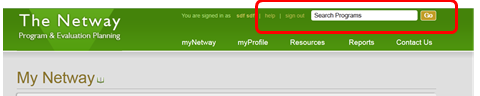
Netway top Navigation:
Along the very top of the page you may quickly access Netway Help, sign out, or search the Netway (by program name or description or organization) (see image below).
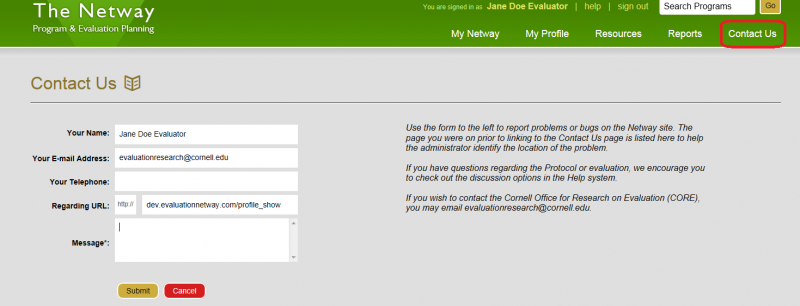
Netway main navigation:
Click the My Netway link at the top header to return to your home page, where you can create a program, or quickly access your programs, playlists and bookmarks.
Use My Profile to edit your contact information and password, or to find all the programs you are authorized to edit.
Use Resources to access the Protocol (a step-by-step guide for evaluation), Guidance (videos, worksheets, discussions and FAQs for planning and implementing evaluation) and Netway Help (tutorials, FAQs and other Netway-specific documentation on how to use the Netway.
Use Reports to create and export program data from your programs and playlists. Reports may include any or all of the following: Program mission, description, organization, lifecycles, stakeholder map, logic model, activity descriptions, pathway model, evaluation plan, associated measures, and authorized staff.
Use the Contact Us link when to report a bug or problem in the Netway.
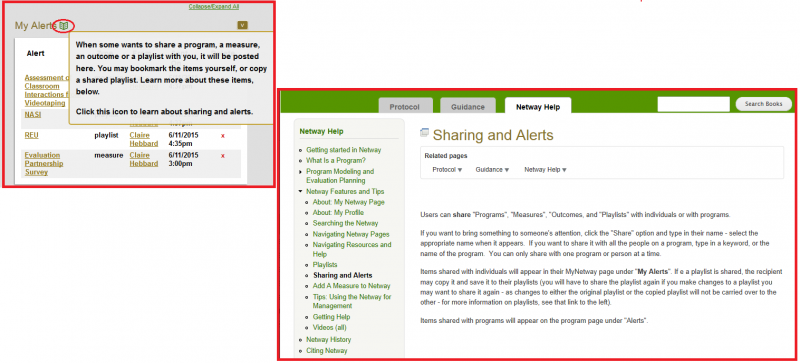
Book Icon Help
Hover over book icons (1) in headers to reveal context-specific help or click on the book icon to navigate to context-specific help (2) in the Resources section.
Expand/Collapse Page sections
From many pages (My Netway, the Program page, the Reports page) you will see drop-down arrows on the right side of the page. Click on these (or on the section headers) to collapse or expand that page section. Some pages have a “Collapse/Expand All link that lets you change all sections on the page at once.
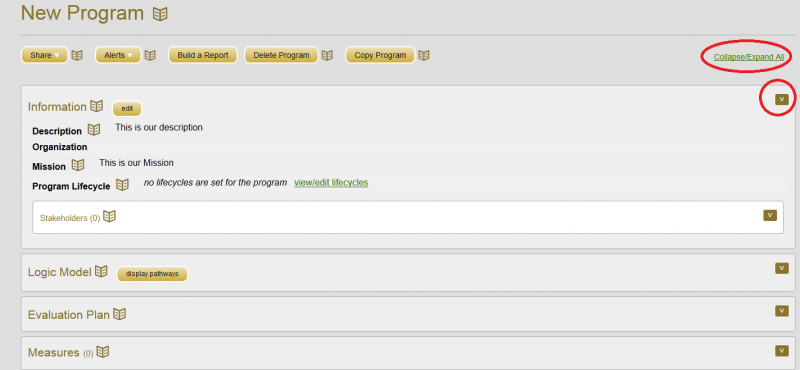
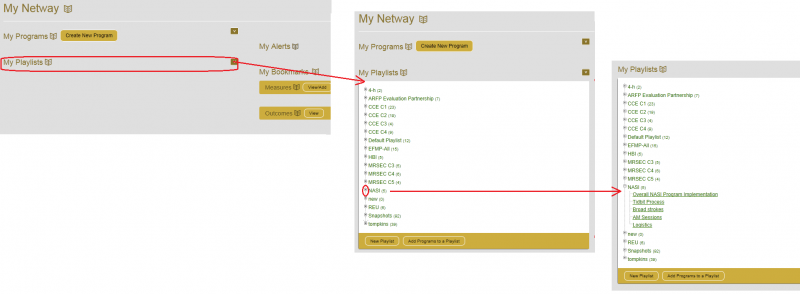
Expand/Collapse Playlists
The My Playlists includes some vestigial programming that uses +/- symbols to expand or collapse sections. Click on the drop down arrow to expand the My Playlists section, then use the (+/-) top expand and collapse these sections. If you click on the name of a playlist or program, you will go to the page for that playlist or program, rather than expand it.