How to “Build a Report”
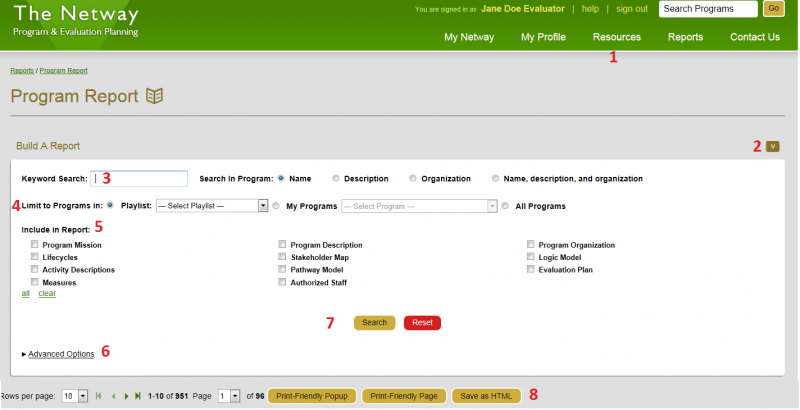
- Click on the Reports tab in the navigation bar.
- Open the “Build a Report” section to show options.
- Using a search string is optional – Determine if you are going to use a search string, and where to search (this is not commonly used, but if you want a single program not in a playlist, here is where you may enter the title or key word)
- Select the playlist you want to create reports for (for more information on playlists see the Netway help section for playlists) (if you leave the playlist selection as “select playlist” – meaning you didn’t choose a playlist, then it will search the entire Netway. If you select My Programs you will get a report for all programs you are authorized on.)
- Select the element(s) that you want to appear in your program report.
- Advanced options allow you to edit your pathway model section of the report – but this is rather limited when running reports on multiple programs.
- Click “Search”
- Reports can be saved in HTML, or printed to paper or PDF via your print options on your computer.
Tip – If you have an interest in tracking historical changes, it is recommended to keep reports by printing them or storing them electronically, since Netway data changes over time, and you can’t search reports from previous dates.
Tip – in our experience it is better to go to the Pathway Model section of your program to fine-tune pathway model reports for single programs or if you only want the pathway model report.
Q&A
Q: How can I save a Logic Model report as a pdf document?
We usually select the “Print Friendly Page” and then when selecting the printer, we Print to PDF.