Playlists are extremely useful for quickly navigating to a group of programs or for using for reporting. By creating a playlist of the programs you are managing or tracking, you will be able to create a report for all the programs in your playlist with a single report.
Creating a Playlist –
- On your “My Netway” page, under the Playlist section click on “New Playlist“
- Name your playlist and save it.
(NOTE – you can also create a playlist after you’ve searched for programs, so it’s not critical to create them here)
Add Program to Playlist
- Options – Either:
- From within a playlist page, click on “Add Program to Playlist” button will at the top of your page. OR
- From “My Netway”, at the bottom of “My Playlists”, select the “Add Programs to a Playlist” button. OR
- Search program titles or themes in the search box at the top of any page.
- Search a term in the search box (hover over program titles to see program descriptions) and select the ones you want to add to your playlist by clicking on the checkbox to the left of the program name.
- If you approached this through the playlist, your playlist will already be pre-populated in the “Add Checked Programs To:” section. If not, using the drop-down arrow select the playlist you want to add the selected program(s) to (or use the option to create a new playlist).
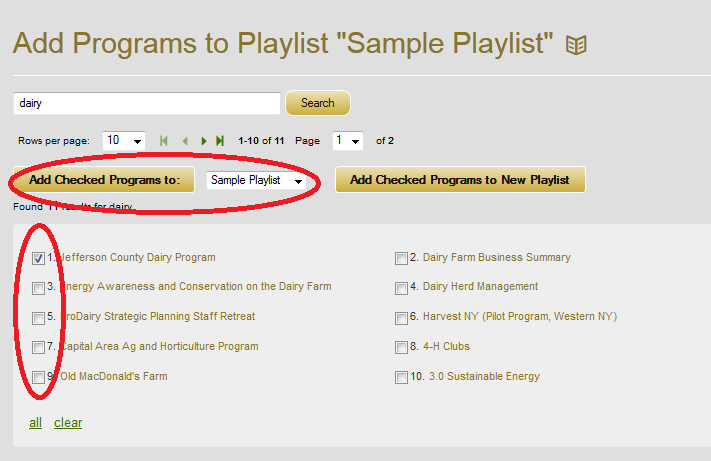
- Click on the appropriate button to add programs to playlist.
Hints
- The “Add Checked Programs to” options don’t activate until you have selected one or more programs.
- From your Playlist page, share the playlist with others on your team, and they will not have to build their own. If they make edits to it, they will change only their own list, not yours. See Alerts and Sharing
- Groups of programs that you work on frequently and my want to run reports on can be added to a playlist for quicker reporting
- You do not have to be authorized to edit a program in order to include them in a playlist.
- It’s easy to copy a playlist, and then add or remove programs to/from that playlist, or rename playlists – so go ahead and copy the default playlist and begin to organize your programs into groups that work with your reporting needs.
Build a Report – By Playlist
Creating playlists of your programs allows you to run reports of multiple programs at once: From the reports page, select “Limit to Program in “Playlist” and select the playlist you want to use. Select the options you want in your report, click Search, and immediately you may have Logic Models, evaluation plans or whatever options you selected for all of your programs. For more help on reporting, see “Creating Program Reports“